
Start logging
- Open ELD-GPS on your gaming PC. Complete Steam sign-in and select ATS or ETS2 and the profile you are about to drive.
- Launch that game and load the same profile. The native telemetry plugin must be installed for that game. Follow Connect your game if game data is missing.
- Open ELD. Check that the game clock is available. Resolve any pending time gap before continuing.
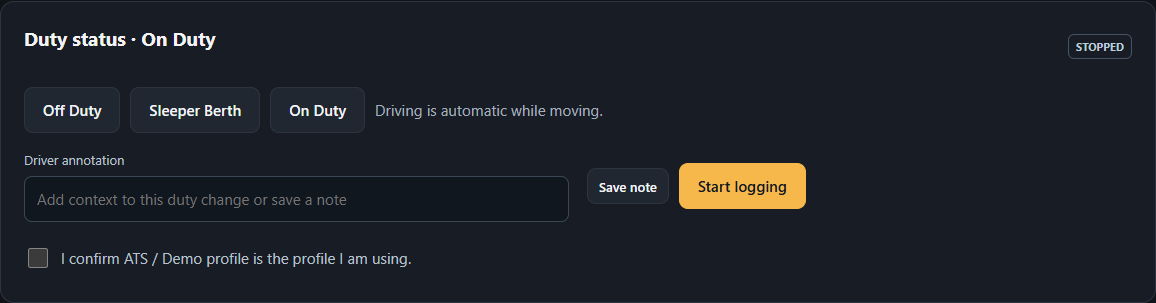
- Tick I confirm … is the profile I am using, then select Start logging. Check that the status changes to Logging.
- Select On Duty for preparation or inspection. Add a driver annotation when useful, then drive; Driving is selected automatically when the vehicle moves.
Choose a duty status
| Status | When to use it |
|---|---|
| On Duty | Preparing, inspecting, loading or doing other work while parked. |
| Driving | Selected automatically from vehicle movement while logging is active. |
| Off Duty | A break away from driving and work. |
| Sleeper Berth | Resting in the truck’s sleeper. |
When you park after driving, check your status. Stopping the truck does not by itself record an Off Duty or Sleeper Berth break.
Select Off Duty or Sleeper Berth and leave logging active while game time advances. Stop logging ends recording; unrecorded time is not automatically credited as rest. A game sleep or fast-travel jump may require review.
Understand the clocks
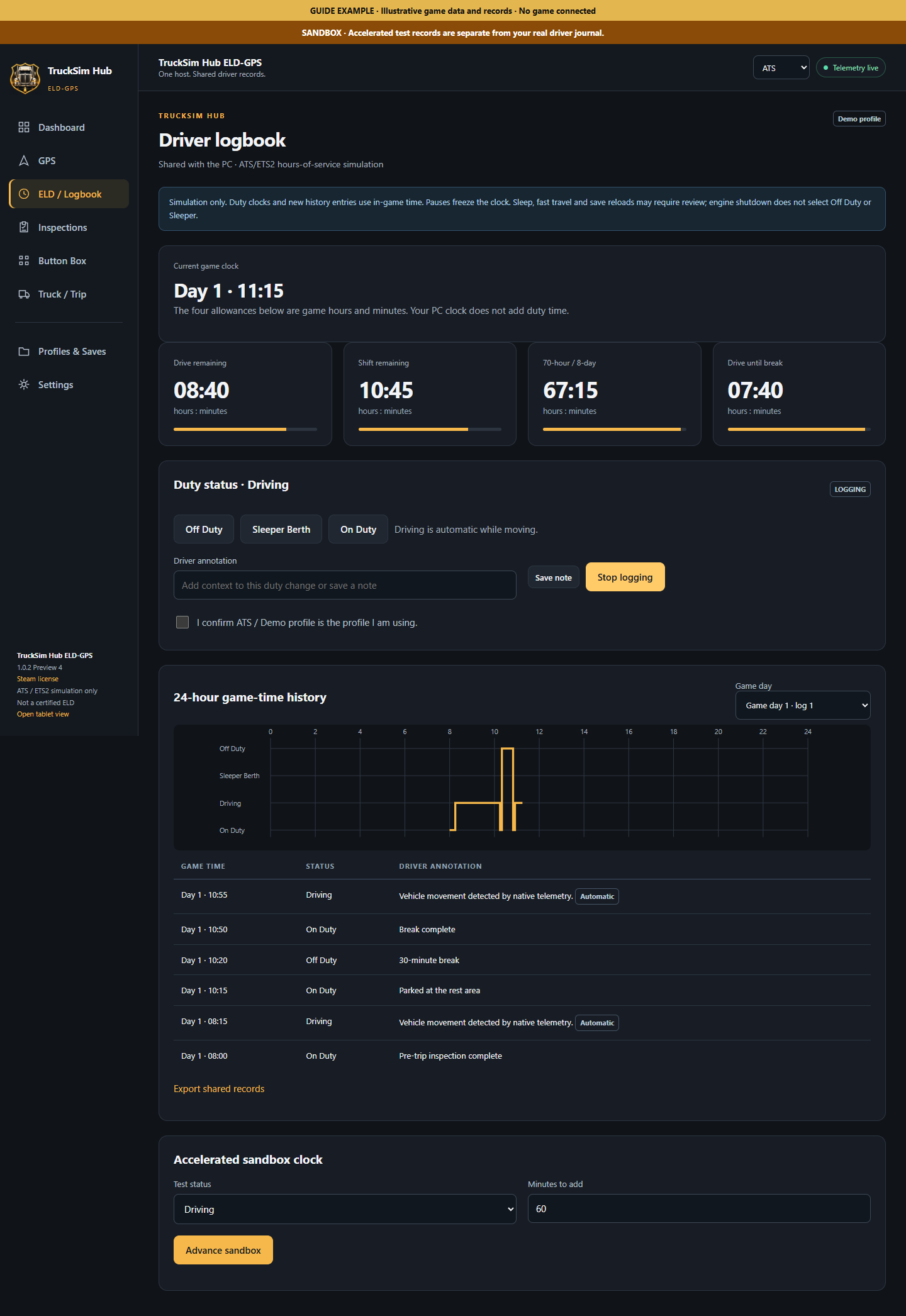
Day 1 · 11:15
The logbook follows the game’s reported minutes. Its Drive, Shift, Cycle and Break counters are game hours and minutes. Pausing the game does not add PC time to the log.
~2 min
The game’s route ETA is converted using its current time scale. The arrival time uses your PC’s local clock. It is an estimate and can change as traffic, speed and the game’s time scale change.
For example, 32 game minutes at a time scale of 20 is about 1 minute 36 seconds in real time. When paused, the estimate is marked paused and an arrival time is not shown. If the game does not report a valid time scale, the app shows that the estimate is unavailable.
Read your duty history
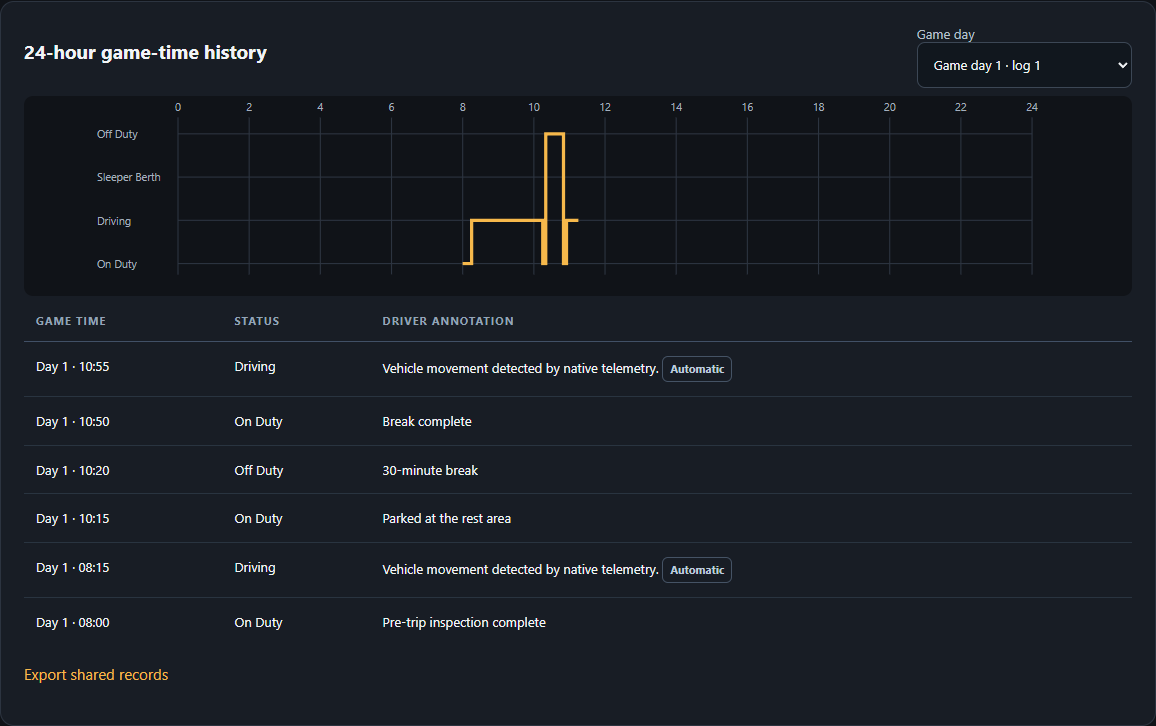
Choose a Game day above the graph. The horizontal scale runs from 00:00 to 24:00 in game time. Each row is a duty status; the gold line shows the recorded activity for the selected game, profile and log.
The table lists the time, status and annotation for each change. If you reload a save or change sessions, a separate log prevents unrelated game times from being joined into one continuous day.
Records without a game-time reference keep their original timestamps. They appear in the legacy-records section instead of being assigned an invented game time. Export includes the shared records.
Resolve a time gap
Sleeping, fast travel, changing sessions or reloading a save can move the game clock suddenly. Logging stops when time cannot be safely treated as a continuous drive. The app does not assume that unknown time was work or rest.
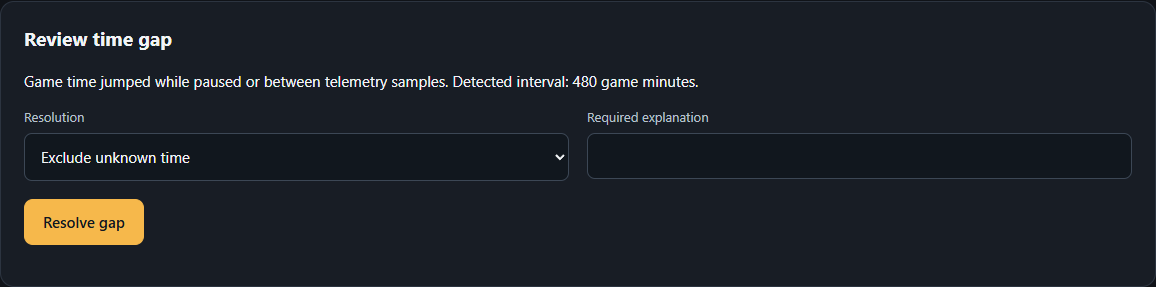
- Read the reason and the detected number of game minutes in Review time gap.
- If you know what happened during a forward interval, select the appropriate available duty status. Otherwise choose Exclude unknown time. A backward reload is not a rest interval.
- Enter the required explanation. For example: “Used game sleep at the rest stop” or “Reloaded an earlier save; unknown time excluded.”
- Select Resolve gap. Review any remaining gaps, confirm the profile again, then select Start logging.
Finish and export
- Park safely in the game and choose the duty status that matches your activity.
- Add any useful annotation and select Save note.
- If you are finished recording, select Stop logging. If you want to record a break, leave logging active instead.
- Use Export shared records to download a copy of your journal. On a shared PC, check the selected game and profile before reviewing or sharing records.
A tablet connected to the same ELD-GPS host shows the same log; it does not create a separate driver session. See Tablet & iPad setup for connection instructions.
Complete an inspection
Open Inspections, review all 15 items and mark each PASS, DEFECT or N/A. Add the required notes, confirm the driver and finish the inspection. Telemetry does not automatically certify that an item passed.
Check the selected game/profile before reviewing or exporting shared records. Use tablet setup to view the same host records from your cab.
Connection and record help
If the game clock is missing, load your truck in the selected profile and check game telemetry setup. ELD-GPS does not substitute elapsed PC time for a missing game clock.
Resolve pending time gaps before starting a log. For missing records, check the game, profile, Documents folder and sandbox mode. Keep saved files and exports when asking for help.
This is a simulation logbook, not a certified real-world ELD.