Set up Dispatcher
Install ELD-GPS, connect your Steam account and select the game and profile you want to use. Create game jobs on the Windows PC. Use Truck / Trip → My dispatch queue on your paired tablet to track deliveries.
Create a game job
- In ATS or ETS2, finish or cancel any active delivery, park your truck and save. You can use a manual save, quick save or completed autosave. Then close the game.
- On the PC, select your game and profile in Profiles & Saves. Open Dispatcher → Create game job, choose the saved game and select Read save.
- Type part of the Pickup city name and choose a match, then choose its company. Repeat for Delivery city and company. The fields start empty. Use Clear to change one selection or Clear route & cargo to start over.
- Choose Cargo and supplied trailer. Only cargo the pickup supplies and the delivery accepts is offered. If nothing matches, try another company in the destination city or another destination.
- Review the distance, priority and offer duration. Dispatcher calculates distance automatically. Existing routes use the saved distance; new land routes show an estimate. Routes needing ferry or train information must already exist in the save.
- Confirm that you will load the new save, then create the game job. Your original save stays unchanged.
- Start the same game and profile. Open Load Game and load the exact ELD-GPS save name shown on the queue card. Open Freight Market, find the pickup and cargo, and accept the offer in the game.
Queue accepted and Game save prepared do not mean the game has accepted a job. Loading the named save and accepting its offer in Freight Market are separate steps.
Supported saves: ATS and ETS2 1.61 and 1.62. If a save was made in an older game version, load it and save again in the version you are using. Jobs use supplied single box trailers: dry van, refrigerated, insulated or curtainsider. Owned-trailer Cargo Market jobs and double/triple trailers are not included.
Choose compatible cargo
Select the pickup and delivery companies first. The cargo list includes only loads supplied by pickup and accepted at delivery, using the installed game and active profile. If the list is empty, choose another delivery company in the same city or another destination. Cargo definitions alone do not guarantee that your driver skills qualify for a particular offer.
Track the delivery queue
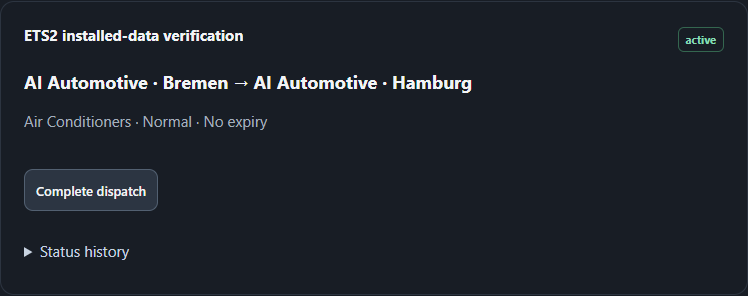
Use Create game job for a playable Freight Market offer. Use Plan dispatch only for a queue record without creating a game save. An accepted queue record is your plan; it does not accept the contract inside ATS or ETS2.
After loading the prepared save and accepting the game offer, use Start tracking. Complete or cancel the queue entry as the work progresses. Finish the actual game contract separately. Review completed and cancelled entries in History.
Use mapped depots and optional stops
For records made with Plan dispatch only, Show pickup on GPS or Show delivery on GPS opens the saved depot marker. These controls appear when you chose a mapped company while creating the dispatch. Changing the typed city/company clears its old pin; choose the matching map depot again.
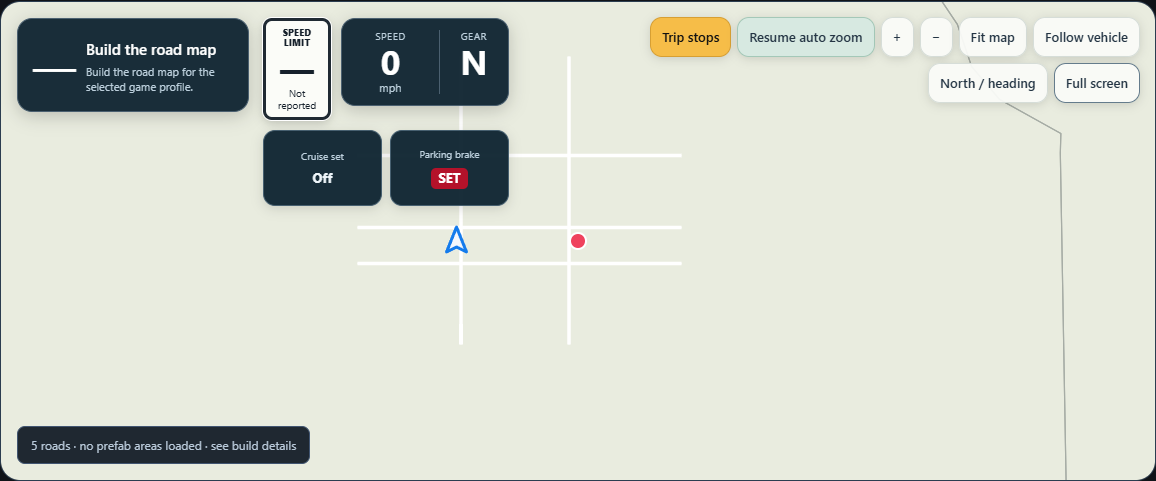
- In GPS, open Trip stops to add waypoints or find fuel and rest stops, following the GPS stops guide.
- While editing a dispatch, select Import this browser’s GPS stops. Reorder them with the arrows or add a name-only reminder. Each dispatch supports up to 20 optional stops.
- From the saved dispatch, Copy optional stops to GPS sends the mapped stops to that browser’s trip list. It asks before replacing an existing list. Name-only reminders stay on the dispatch.
Depot previews and optional stops do not replace the game route. The map requires data for the installed game and active mods. The Create game job form calculates its distance separately from these optional stops. New land routes use an estimate; the live game route distance is displayed separately.
Use the tablet queue
The Windows PC runs ELD-GPS. The tablet uses its web browser; no tablet installer is needed. Keep the PC running, connect both devices to the same network and use the tablet address and pairing code shown by ELD-GPS. Open Truck / Trip and scroll to My dispatch queue. Creating and editing dispatches is available on the Windows host.
Add the iPad shortcut from Safari.
- Open the PC’s tablet address in Safari on the iPad and finish pairing.
- Tap Safari’s Share button, then Add to Home Screen. If it is hidden, scroll through the Share actions.
- Name it TruckSim Hub ELD-GPS and tap Add. Open that shortcut while the PC is running. Pair again if the shortcut requests it.
Reload the tablet after installing the app. If the PC’s local network address changes, open its new address and recreate the shortcut. A saved shortcut does not run the Windows host by itself.
Review history and export records
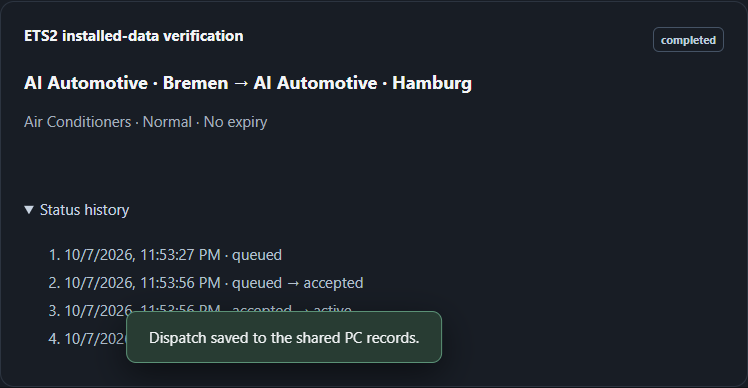
Completed and cancelled dispatches stay in History. Expand Status history to review their transitions. Use Export dispatch records to download JSON records for the selected profile.
Records are separated by game, profile, Documents folder and sandbox mode. Keep exports before changing installations. The queue and history support 200 records per scope; there is no import-from-export tool.
Bring in records from an original owner installation
Under Earlier owner records, choose Import original app dispatch queue to copy matching records. Repeating it skips existing imports and keeps the original journal. Review city/company pairs and compatible cargo before accepting imported queued work.
If an accepted record lacks cargo identifiers, cancel it and create a dispatch with verified cargo. Active and completed records retain their history. Export preserved owner records includes retained finance and maintenance data where present.
Dispatcher troubleshooting
The prepared save is missing in Load Game
Check that the game and profile match the queue card, then close and reopen Load Game. Look for the exact ELD-GPS save name on the card. For a save created by an earlier test build, close the game and use Repair game save if offered.
The offer is not in Freight Market
Load the new ELD-GPS save, rather than Continue or the original save. Check the pickup city, company and cargo on the queue card. Offer availability uses game time. Preparing a job or accepting a queue record does not accept it in the game.
No compatible cargo or route is available
Try another company in the destination city. Check the selected profile, installed content and active mods. Build or refresh the GPS road map if requested for distance calculation. Ferry or train routes need matching route details already recorded in the save.
How to install app updates · Release notes and version history